


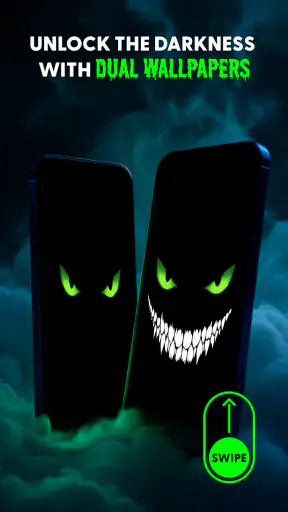
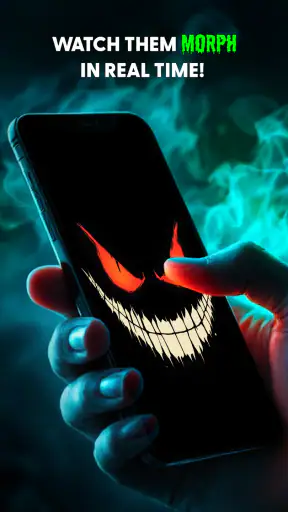
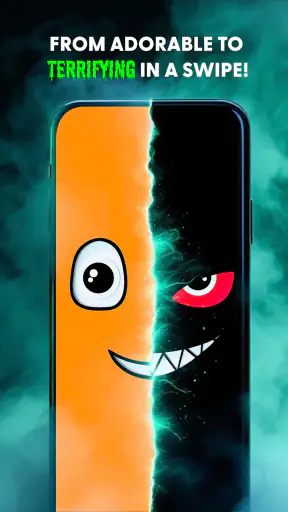
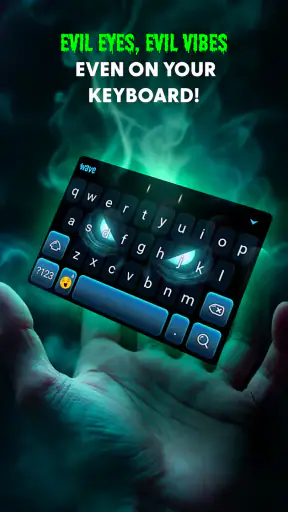

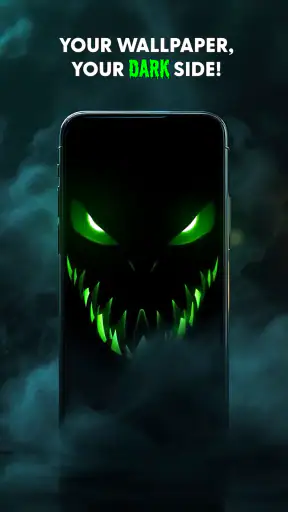
Evil Eyes Live Wallpapers is the kind of personalization app that makes a phone feel slightly unsettling without turning the whole interface into a complicated project. I installed it expecting a simple animated background, and that is exactly where its appeal lies: the screen becomes a small visual surprise whenever the wallpaper is visible. The eyes blink in the darkness, creating a creepy effect that works best when the rest of the phone is kept fairly simple.
What I like most is that the idea is immediately understandable. You are not learning a game system, building a collection, or managing a social profile. You are changing the atmosphere of your device. For someone who enjoys horror styling, Halloween themes, dark humor, or unusual home-screen decoration, this app is an easy experiment because it is free and aimed at Everyone. For someone who wants a calm, battery-conscious, completely static background, it is a much less obvious choice.
How the blinking eyes change the phone experience
The strongest part of the app is its mood rather than its practical utility. A normal wallpaper disappears into the background after a few days, but animated eyes keep drawing attention because movement is hard to ignore. The effect is especially noticeable when I unlock the phone in a dim room or glance at the home screen between tasks. It gives an ordinary device a deliberately eerie personality.
That also means the wallpaper is not equally suitable for every setting. It can be fun when showing friends the phone, decorating a device for a party, or giving a spare handset a horror-themed look. At work, in a classroom, or around people who dislike disturbing imagery, the same animation may feel distracting or childish. The content rating is Everyone, but personal taste still matters more here than the age label.
The app belongs squarely in Android personalization, not entertainment in the usual sense. I would not open it repeatedly as I would a game. Instead, I would set the visual style, return to the home screen, and judge whether the animation remains pleasant after several hours. That distinction is important: the value comes from changing the phone’s background atmosphere, not from offering a deep activity.
A good fit for dark, uncluttered home screens
The blinking effect has more impact when icons do not cover every part of the display. I found that a crowded home screen competes with the eyes and makes the background look messy. Moving less-used apps into folders, keeping widgets to a minimum, and choosing a darker icon arrangement can make the animation easier to notice without making the phone harder to use.
This is one of the more useful ways to approach the app: treat the wallpaper as part of a complete layout rather than as an isolated download. If the screen is already packed with bright widgets, the eyes become just another moving element. If the rest of the screen is restrained, the animation becomes the visual focus.
There is a trade-off, though. A wallpaper that attracts attention can also make it harder to concentrate. I would avoid it on a phone used mainly for reading, navigation, work messages, or accessibility settings where visual clarity is the priority. The app succeeds when you want a mood; it is less convincing when you want the background to disappear.
What happens when the phone is moving between connections
Connectivity matters here in a quieter way than it does in a social or streaming app. The most network-dependent moment is usually getting the app and any associated wallpaper material onto the phone in the first place. Once I am deciding whether to keep the effect, the important experience is the visible animation on the home screen rather than an ongoing online activity.
I would still avoid assuming that every part of the experience behaves identically without a connection. A sensible approach is to install and configure it while the phone has a stable connection, then check the result directly on the home screen before relying on it for a themed event or a temporary device makeover. That simple check prevents a last-minute surprise and does not require guessing about how every wallpaper asset is handled.
This matters particularly on a phone used while traveling. If I wanted the eyes ready for a flight, a campsite, or a place with unreliable reception, I would set everything up beforehand and test the lock and home screens before leaving. The useful question is not whether the app feels “online” during ordinary viewing; it is whether the chosen appearance is already behaving as expected when the network is unavailable.
For readers with limited mobile data, the practical rule is straightforward: use Wi-Fi for the initial installation and setup whenever possible. There is no reason to spend cellular data casually on a visual experiment. Afterward, I would observe whether the phone continues to show the selected wallpaper normally during ordinary use, rather than repeatedly opening the app just to inspect it.
Everyday scenarios where it works best
One realistic use is a weekend horror-film gathering. I would install the app before guests arrive, select the dark visual treatment, simplify the home screen, and leave the phone face-up on a table. When someone checks the time or receives a message, the blinking eyes add a small surprise without requiring a separate decoration. It is a minor touch, but it can make the device fit the occasion.
Another use is a secondary phone that feels visually dull. Instead of spending time redesigning every icon and widget, I can use the animated wallpaper to create an immediate theme. This is particularly effective for someone who likes spooky aesthetics but does not want a full launcher replacement. The app changes the background while leaving the familiar phone controls in place.
I can also see it working as a short-term change. A person might use it for a party, a seasonal mood, or a playful challenge with friends, then return to a static wallpaper. That temporary approach helps with the main weakness of animated backgrounds: novelty fades. The eyes are most effective when they remain a deliberate choice rather than becoming visual noise every day.
On the other hand, I would skip it for a child who is easily frightened at night, a person who finds blinking imagery uncomfortable, or anyone who wants a professional-looking device. I would also choose a regular static wallpaper for an older phone where smooth animation already feels demanding. The visual concept is specific enough that there is no benefit in forcing it onto a device or user that does not suit it.
Installation, version, and the first setup decision
DummTech is the developer behind the app, which is currently listed as version 5.35.1 and supports Android 7.0 or later. Those details make it relevant to a broad range of Android phones, including devices that are not running the newest system software. I would still check the phone’s available storage and general responsiveness before adding any live wallpaper, especially on older hardware.
The app is free, so trying it does not require a purchase decision. That lowers the barrier for experimentation, but it also makes the first few minutes important: if the visual effect is not your style, there is little reason to keep it installed simply because it cost nothing. I prefer to test it during normal phone use rather than judging it only from the preview.
My first setup would be deliberately restrained. I would apply the wallpaper, return to the home screen, open a few everyday apps, and check whether icons and text remain easy to read. Then I would lock and unlock the phone several times, because a wallpaper can look good in a preview but feel different when it appears briefly during real use. This workflow gives a better answer than staring at the setup screen.
It is also worth checking both the home screen and lock screen behavior if the phone offers separate wallpaper choices. I would not assume that the same presentation appears in both places. Testing each screen helps avoid an unwanted surprise, particularly if the phone is used in public or if the lock screen is visible to other people.
Failure points and a sensible recovery routine
Animated wallpaper apps can create small moments of confusion when the image does not appear as expected. A phone may revert to a previous background after a system change, a launcher adjustment, or a wallpaper selection mistake. If that happened to me, I would first return to the app and reapply the chosen wallpaper rather than immediately reinstalling it.
Next, I would check whether the phone is actually showing the intended home screen and whether another personalization tool has taken control of the background. Launchers, theme tools, and manufacturer-specific wallpaper menus can make it unclear which setting is active. Rechecking the final screen is more useful than repeatedly changing options without knowing which one won.
If the animation appears frozen, I would lock the phone, wait briefly, and unlock it again before treating the issue as a serious fault. I would also restart the device if the behavior began after a general system slowdown. These are ordinary recovery steps, but they are valuable because the app’s core promise is visual; a static or missing effect immediately makes the installation feel pointless.
There is a practical reason not to keep several live wallpaper tools active at once. Even without making assumptions about how this particular app handles system resources, competing personalization tools can make troubleshooting harder. I would keep one wallpaper system selected, remove unused alternatives, and only then decide whether the eyes are behaving consistently.
When an app is being prepared for an event, I would test it earlier rather than installing it minutes before guests arrive. That gives time to restore the previous wallpaper if the result is too distracting. The recovery plan is simple: remember the former background, apply the new one, use the phone normally, and switch back if the animation becomes annoying.
Battery, attention, and data-conscious habits
The main cost of a live wallpaper is not necessarily data; it is the combination of motion, screen activity, and attention. I would not promise a specific battery impact because it can vary with the phone, display, brightness, and how often the home screen is visible. My advice is to watch the phone’s own battery behavior after a normal day, especially if the device is older or already struggles to last until evening.
A useful test is to compare two ordinary days rather than obsessing over a single percentage. Use the animated wallpaper as you normally would, then switch to a static background and see whether the difference is meaningful on your device. If battery life matters more than the creepy effect, the static option is the better choice regardless of how attractive the animation looks.
Data-conscious use begins with installation. I would download and configure the app over Wi-Fi, avoid repeatedly clearing and redownloading anything unnecessarily, and refrain from opening it just to watch the preview when the phone is using mobile data. The wallpaper is a background, not a service that needs constant attention, so disciplined setup is more sensible than frequent checking.
I would also pay attention to when the animation is visible. If I spend most of the day inside messaging, browsing, or work apps, the wallpaper may be seen only briefly. In that case, the visual benefit is limited, and a static image may provide nearly the same personalization with less possible distraction. If I often leave the home screen visible, the moving eyes have a stronger reason to stay.
The app’s high user response suggests that its central idea connects with many people: it holds a 4.7 average from around 63 thousand ratings and has passed one million installs. I read those figures as evidence of broad interest, not as a guarantee that every phone or taste will suit it. A creepy animated background is naturally more polarizing than a landscape or plain color, so personal reaction remains the decisive test.
How it compares with ordinary wallpaper choices
Compared with a static image, Evil Eyes Live Wallpapers offers more personality and a stronger sense of occasion. A static wallpaper is easier to ignore, usually calmer, and better for people who want their icons to remain the focus. The live option wins when the background itself is meant to be noticed.
Compared with a full launcher or icon-pack makeover, this app is much less demanding. It does not require me to relearn navigation or redesign every shortcut just to create a spooky atmosphere. That simplicity is a genuine strength. The trade-off is that I get one dominant visual idea rather than a complete, coordinated interface.
Compared with generic animated wallpapers, the eyes give this app a clearer identity. Many motion backgrounds become decorative blur; this one has a recognizable subject and an emotional effect. That focus is also its limitation. If I want nature, abstract colors, space, or a neutral animation, another personalization option would be more flexible.
I would choose a static wallpaper for productivity, a broader theme tool for a full visual redesign, and this app for a quick horror-inspired transformation. That division makes the decision easy. It is not trying to replace every personalization method, and I do not think it should be judged as though it were a launcher, a game, or a general wallpaper library.
Who should install it and who should move on
I recommend it to Android users who enjoy playful horror styling and want an immediate change without paying for a customization package. It is especially suitable for short-term themes, social moments, secondary phones, and dark home-screen layouts. The free price makes it easy to try, while the Everyone rating keeps the concept broadly accessible.
I would be more cautious if your phone is old, your battery is already weak, or you dislike motion on the home screen. I would also avoid it if you need a discreet professional appearance or if blinking imagery makes you uncomfortable. In those situations, a static dark background will probably deliver a cleaner result with fewer compromises.
For me, the best way to use it is as a controlled accent: install it over Wi-Fi, apply it before the moment when you want the effect, test the home and lock screens, and keep a simple fallback wallpaper ready. That workflow respects both the fun of the animation and the possibility that it may become distracting.
After living with it, I see Evil Eyes Live Wallpapers as a focused personalization tool rather than an app I would keep changing every day. Its blinking eyes create a memorable atmosphere with almost no learning curve, and the large installed audience shows that the concept has found its audience. The experience is strongest when the phone is intentionally styled around it and weaker when the screen is already busy.
My connectivity verdict is positive but practical: prepare the wallpaper while connected, verify the final appearance before depending on it, and judge its long-term value through ordinary phone use rather than the preview alone. If you want a free, eerie visual accent and accept that animation can cost attention as well as novelty, it is worth trying. If you want quiet, maximum efficiency, or a complete interface redesign, choose a static wallpaper or a broader personalization tool instead.


